If you’re looking to deploy Ant Media on AWS, you already know the stakes. In today’s digital world, “lag” is a deal-breaker. Whether you’re building a real-time auction, an interactive e-learning platform, or a global live event, your users expect instant, buffer-free video. Getting this wrong leads to frustrated users and lost revenue.
The challenge is building a system that delivers sub-500ms latency and scales to handle a massive, unpredictable audience.
This is the exact problem that Ant Media Server (AMS) and Amazon Web Services (AWS) solve together. AMS provides the powerful, ultra-low latency WebRTC streaming engine, and AWS provides the global, on-demand infrastructure to power it.
But “just use AWS” isn’t a plan. AWS is a universe of services, and choosing the wrong path can lead to complex, costly, and fragile setups. This guide cuts through the noise. We will show you the three essential, battle-tested methods to deploy Ant Media on AWS from the AWS Marketplace, with a heavy focus on the easiest and most powerful solution first.
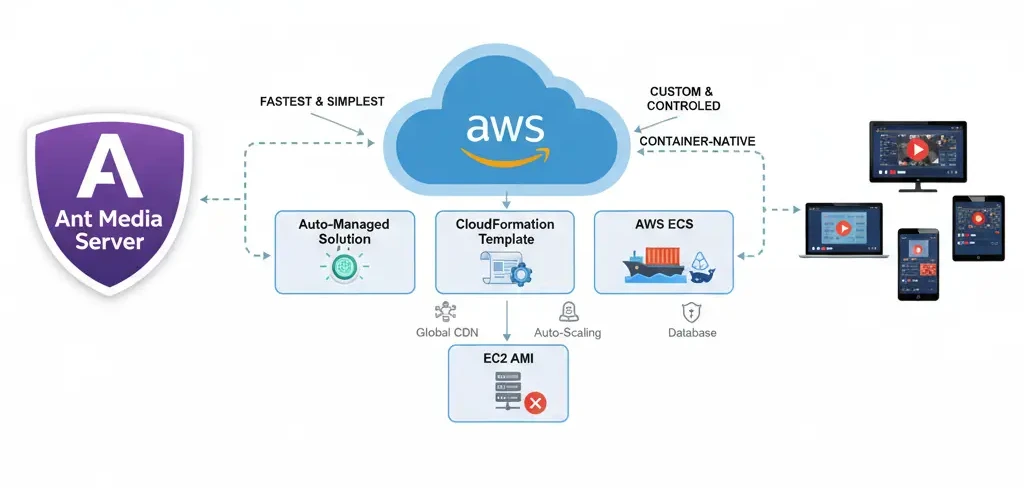
Table of Contents
Why This Guide to Deploy Ant Media on AWS?
We’ve helped thousands of developers and businesses deploy Ant Media on AWS. We’ve seen what works, what doesn’t, and what causes the biggest headaches. This guide is our definitive playbook, written to help you choose the right deployment method for your specific needs, saving you time and money.
The AMS + AWS Advantage (Why It’s Worth It)
Pairing Ant Media Server with AWS is the professional standard for a reason.
- Ultra-Low Latency: This is the core of Ant Media. You get true real-time interaction (sub-500ms) with WebRTC, which is impossible with standard HLS streaming. Learn more about what ultra-low latency is.
- Massive, Elastic Scalability: Go from one user to one million. AWS auto-scaling can grow your AMS cluster to meet global demand without you lifting a finger. This is the key to handling viral traffic spikes.
- Global Reach: Deploy your streams in AWS regions close to your users, no matter where they are in the world. This ensures the best, fastest, and most stable experience for everyone.
- Pay-as-you-go: Stop guessing at capacity. With AWS and Ant Media’s hourly licenses, you only pay for the infrastructure and software you actually use.
- Secure & Robust: You inherit AWS’s world-class, secure-by-default infrastructure, and Ant Media provides robust stream security features like token control and one-time passwords.
Before You Start: Your Quick Launch Checklist
Having these ready will make the launch process incredibly smooth.
- An Active AWS Account: This one’s a must-have.
- Ant Media Server Subscription: You can directly subscribe to the AMS from the AWS Marketplace.
- A Registered Domain Name: You’ll need this (e.g.,
streaming.yourcompany.com) for any production-ready cluster.
Which Method to Deploy Ant Media on AWS is For You?
Here’s a simple breakdown to help you choose the best method to deploy Ant Media on AWS according to your needs & use case.
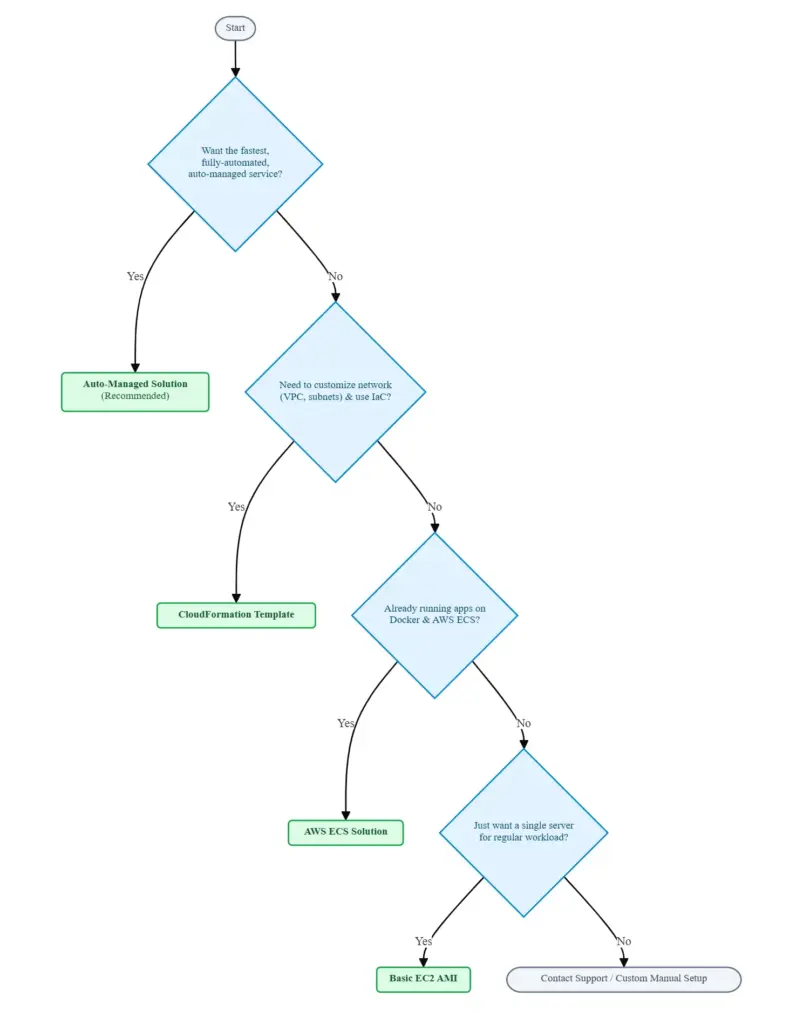
- Want the fastest, fully automated, auto-managed service that just works?
- Use the Auto-Managed Solution.
- Need to customize your network (VPC, subnets) and want to deploy using Infrastructure-as-Code (IaC)?
- Use the CloudFormation Template.
- Already run all your apps on Docker and AWS ECS?
- Use the AWS ECS Solution to plug AMS into your existing container workflow.
- Just want a single server for regular load or quick dev test?
- Use the basic EC2 AMI.
Method 1: The “Easy Button” — Auto-Managed Solution
This is our latest deployment method, which is like a service. For 90% of users, this is the right answer. It gives you a professional, auto-managed service; at the same time, you have complete access to the infrastructure without needing to be an AWS expert.
What is the Auto-Managed Solution?
Think of it as an expert AWS engineer in a box to deploy Ant Media on AWS. Instead of you manually figuring out load balancers, auto-scaling groups, security policies, launch configurations, and DNS, this solution does it all for you.
This is For You If…
- You need to get to production fast.
- You want to focus on your app, not on managing servers.
- You need a reliable, scalable service without a dedicated DevOps team.
- You value automation and simplicity above granular control.
Launching Your Auto-Managed Service
Wondering how to deploy the Auto-Managed solution on AWS?
Check the step-by-step guide: Enable Auto-Managed Solution.
Method 2: The “Pro Blueprint” — CloudFormation Template
If you like the idea of an automated, scalable cluster but are a DevOps pro who needs to customize the underlying nuts and bolts. In that case, the CloudFormation method is the solution to deploy Ant Media on AWS.
What is AWS CloudFormation?
CloudFormation is AWS’s “Infrastructure as Code” (IaC) service. In plain English, you create a text file (a template) that acts as a blueprint for your entire AWS environment. You give AWS the blueprint, and it builds everything exactly as you specified.
How AMS Uses It for Scalable Clusters?
Ant Media provides a pre-built, battle-tested CloudFormation template that creates a scalable Origin-Edge cluster. Unlike the Auto-Managed solution, this method lets you customize all the parameters:
- Which existing VPC and subnets to deploy into.
- Your own custom security group IDs.
- Specific EC2 instance types for Origin and Edge servers.
- Your own SSL certificate from AWS Certificate Manager (ACM), etc.
This is the perfect way to deploy Ant Media on AWS if you have strict corporate network policies.
This is For You If…
- You are a DevOps engineer or IT admin.
- You need to deploy AMS into an existing, complex AWS network.
- Your company has strict compliance or security policies for all new resources.
- You are automating your entire infrastructure with IaC.
Launching an Auto-Scalable Cluster with CloudFormation
Wondering how to deploy Ant Media on AWS with CloudFormation?
Check the step-by-step guide: Scaling with AWS CloudFormation.
Method 3: The “Container Native” — AWS ECS Solution
For organizations that have fully embraced the container revolution, this is your native path. AMS is available as a container-native solution for Amazon’s Elastic Container Service (ECS).
What is Amazon ECS? (Docker on AWS)
Amazon ECS is a managed service for running Docker containers. If your company lives and breathes Docker, this lets you manage Ant Media Server as just another containerized service.
Why Run AMS on ECS?
- Integration: Plug AMS directly into your existing ECS-based tech stack (your API, website, etc.).
- Portability: Use the same Docker-based CI/CD pipeline for AMS as all your other apps.
- Familiarity: Your team doesn’t need to learn a new deployment model; they just manage another ECS service.
This is For You If…
- Your organization is “Docker-first.”
- You want fine-grained control over the application lifecycle and task placement.
- You want to run AMS on the serverless Fargate platform.
Note: This is the most complex of the three primary methods and assumes you’re already comfortable with AWS networking and container orchestration.
How to Deploy Ant Media on AWS ECS?
Wondering how to deploy Ant Media on AWS ECS?
Check the step-by-step guide: Scaling with AWS ECS.
Fargate vs. EC2: A Quick Note
When you use ECS, you can run your containers in two modes:
- Fargate: This is “serverless” containers. You just define the container and its resource needs (CPU/RAM), and AWS runs it. You don’t manage any servers. It’s simpler but can be more expensive at scale.
- EC2: You manage a cluster of EC2 instances, and ECS places your containers onto them. This gives you more control over instance types (e.g., GPU instances) and can be more cost-effective.
The “Quick Test” Method: Basic EC2 AMI
What It Is
This is the classic, “old-school” way to deploy Ant Media on AWS. You launch a single virtual server (an EC2 instance) from a pre-configured Ant Media Server image (AMI). In minutes, you have one server running AMS at a public IP address.
The Catch
This method is great for a quick dev test or a tiny, one-off broadcast. It is not a high-availability solution.
- ⚠️ It’s a single server: It does not scale. If it fails, your stream is dead.
- ⚠️ It’s 100% manual: You are responsible for configuring a domain, installing an SSL certificate, and setting up all security.
Decision Guide: The Right Tool for the Job
Here’s a simple table to help you choose your best way to deploy Ant Media on AWS.
| Method | Ease of Use | Scalability | Control | Recommended Use Case |
| Auto-Managed | ⭐⭐⭐⭐⭐ (Easiest) | Fully Automatic | Low | All Users |
| CloudFormation | ⭐⭐⭐ (Medium) | Fully Automatic | Medium | DevOps & IT |
| AWS ECS | ⭐⭐ (Hard) | Fully Automatic | High | Container-Native |
| EC2 AMI | ⭐⭐⭐⭐ (Easy) | Manual (Single) | High | Dev, Test, Small Broadcasts |
Common Pitfalls to Avoid When You Deploy Ant Media on AWS
Avoid these common mistakes to save yourself hours of troubleshooting.
- Forgetting S3 Integration: Don’t store VODs (recordings) on the EC2 instances. Instance storage is temporary (ephemeral) and will be lost if the server terminates or scales down. Always configure an S3 bucket for persistent storage. The Auto-Managed solution prompts you for this.
- Using the Wrong Instance Type: Video streaming is CPU-intensive. Don’t use
t2.microor other burstable/small instances for production. Start with CPU-optimized instances like thec5.xlargeorc6a.xlargeseries. - Ignoring Security Groups: AWS Security Groups are your server’s firewall. Don’t leave them open to the world (
0.0.0.0/0), especially for SSH (port 22). Only open the specific ports you need (WebRTC, RTMP, etc.) to the sources that need them. - Skipping SSL: Modern browsers require SSL (HTTPS) for WebRTC to work. Don’t try to run a production stream over HTTP. The Auto-Managed solution handles this for you automatically.
Pro-Tips To Deploy Ant Media on AWS
- Choosing the Right Instances: As mentioned, streaming is CPU-heavy. If you are doing heavy ABR (Adaptive Bitrate) transcoding, you’ll get a massive performance and cost benefit from using GPU-accelerated instances like the
g4dnorg5series. - Lock It Down: Security Best Practices: Beyond Security Groups, use Ant Media’s built-in stream security features like Token Control or One-Time Passwords (OTPs) to prevent unauthorized publishing or viewing.
- Use S3 for VODs (Don’t Forget!): This is so important it’s in pitfalls and pro-tips. Configure your cluster to use an S3 bucket. It’s cheaper, infinitely scalable, and far more durable than server storage.
- Monitoring with CloudWatch: Your cluster produces a wealth of metrics. Use AWS CloudWatch to set up alarms. A key alarm to set is
CPUUtilizationon your Edge group. When it goes above (for example) 70%, you know your auto-scaling is working or needs to be adjusted. - Cost Management 101: Use AWS Budgets to get alerts before you have a surprise bill. If you have predictable traffic, consider EC2 Reserved Instances or Savings Plans for your Origin servers to save up to 70% on compute costs.
Frequently Asked Questions (FAQ)
Q: Can I use my existing Ant Media license (BYOL)? A: Yes! The CloudFormation, ECS, and EC2 AMI methods all support “Bring Your Own License” (BYOL).
Q: How do I update my cluster? For CloudFormation, you’d update the stack with a new template from Ant Media. For ECS, you’d point your task definition to the new AMS Docker image tag.
Q: What is an “Origin-Edge” cluster? A: It’s the standard, scalable architecture. “Origin” servers ingest the live stream (from the broadcaster). “Edge” servers take that one stream and distribute it to thousands of viewers. This is how you scale. The cluster solutions build this for you automatically.
Get Started Now
Deploying a professional, ultra-low latency streaming service is no longer a complex, months-long project. With Ant Media Server on the AWS Marketplace, you have a clear, essential path for every use case.
Your choice is simple:
- Want it easy and fast? Use the Auto-Managed Solution.
- Want custom control? Use the CloudFormation Template.
- Want container-native? Use the ECS Solution.
The power to build a world-class, real-time application is at your fingertips.
Reach out to us at [email protected] if you need help to deploy Ant Media on AWS.
And for more detailed technical guides, check out our official documentation.