One of the easiest ways to deploy Ant Media Server is via cloud marketplaces, including AWS, Azure, Google Cloud, and now, to add to that list, we are pleased to announce a new addition, the Oracle Cloud marketplace, part of Oracle Partner Network (OCN).
Ant Media Server has seamlessly integrated its capabilities with the Oracle Cloud Marketplace, offering an additional avenue for streamlined deployment. In this guide, we will walk you through the process of utilizing Ant Media Server on Oracle Cloud Marketplace to establish a reliable and efficient live streaming infrastructure.
Table of Contents
Prerequisites:
Before we begin, ensure that you have an Oracle Cloud account and basic familiarity with cloud infrastructure concepts.
Step 1: Accessing Oracle Cloud Marketplace
- Log in to your Oracle Cloud account https://www.oracle.com/cloud/sign-in.html
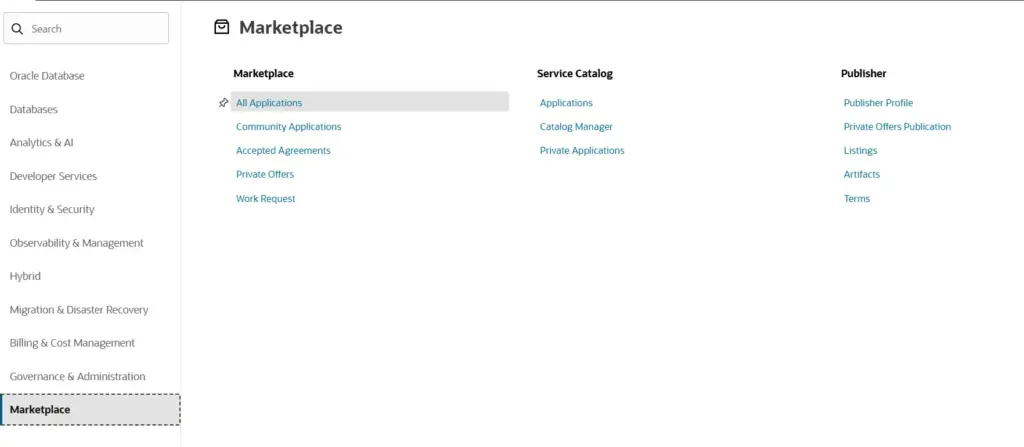
- Navigate to the Oracle Cloud Marketplace.
- Select All Applications.
Step 2: Search and Select Ant Media Server
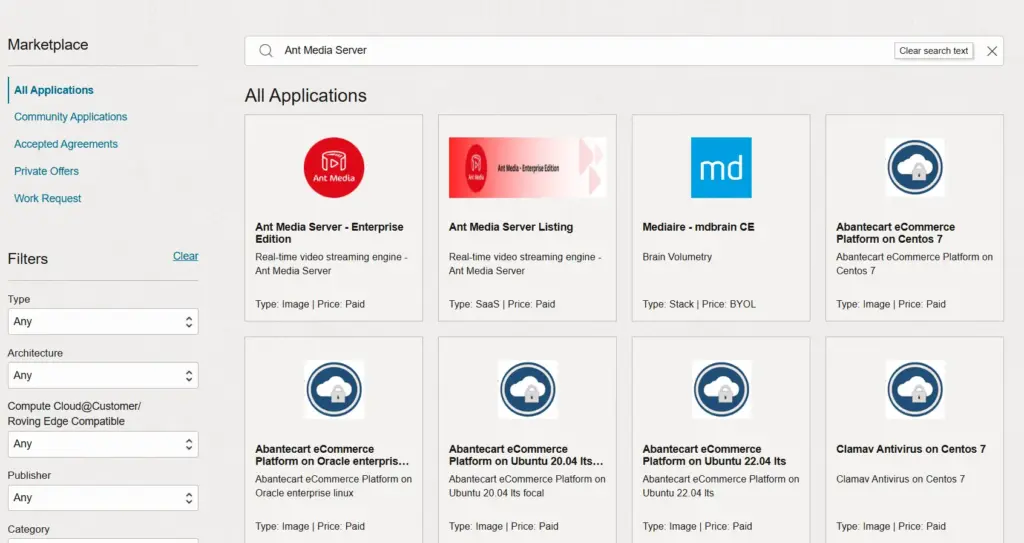
- In the marketplace’s search bar, enter “Ant Media Server.”
- Select Ant Media Server – Enterprise Edition from the options.
Step 3: Launching an Ant Media Server Instance
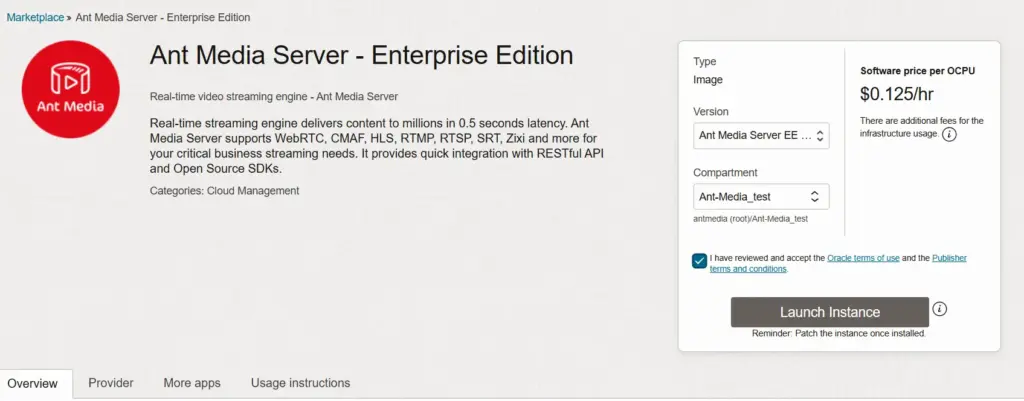
- Click on the chosen Ant Media Server listing.
- Choose the Ant Media Server Enterprise Edition version. It is recommended to run the latest version (default).
- Choose your preferred compartment.
- Accept Oracle’s terms of use and then click Launch Instance.
Step 4: Instance Setup and Configuration
Basic Information
- Name your instance and select the appropriate compartment.
- Select the availability zone under placement and choose on-demand capacity.
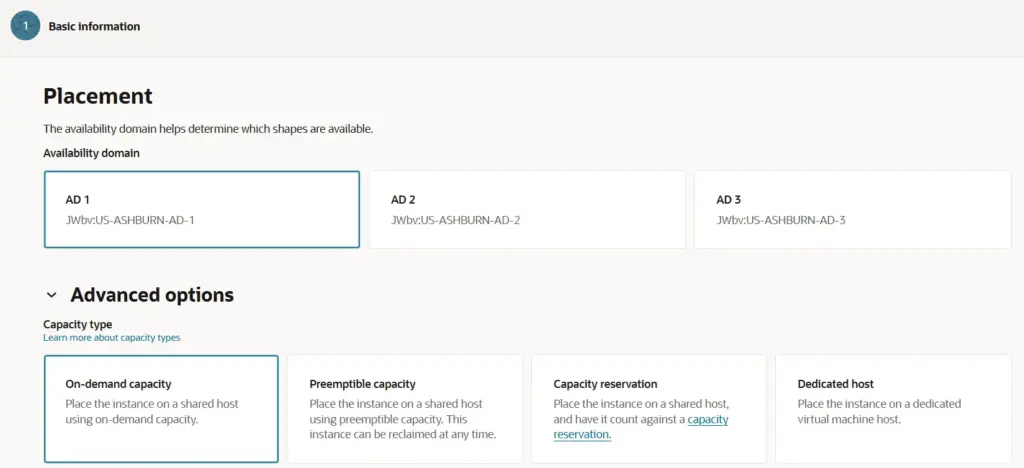
Image and Shape
- Select the appropriate instance type and deployment options that best meet your streaming requirements.
- It is recommended to use a CPU-optimized instance with at least 4 cores and 8GB of RAM for running Ant Media Server Enterprise Edition efficiently.
- Click Next.
Security
Keep the default settings.
Networking
- Make sure that the correct network and subnet are selected.
- Enable Automatically assign public IPv4 address.
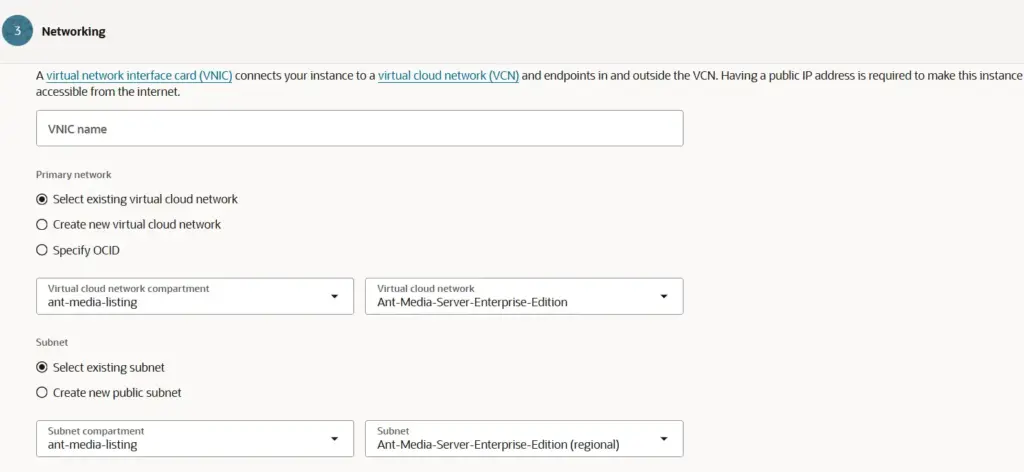
- Make sure that you have the SSH key. It will be needed in the future for SSH.
- Click Next.
- Keep the other options to the default.
- Review the settings & click Create.
- If everything is configured correctly, the Ant Media Server instance will be up and running.
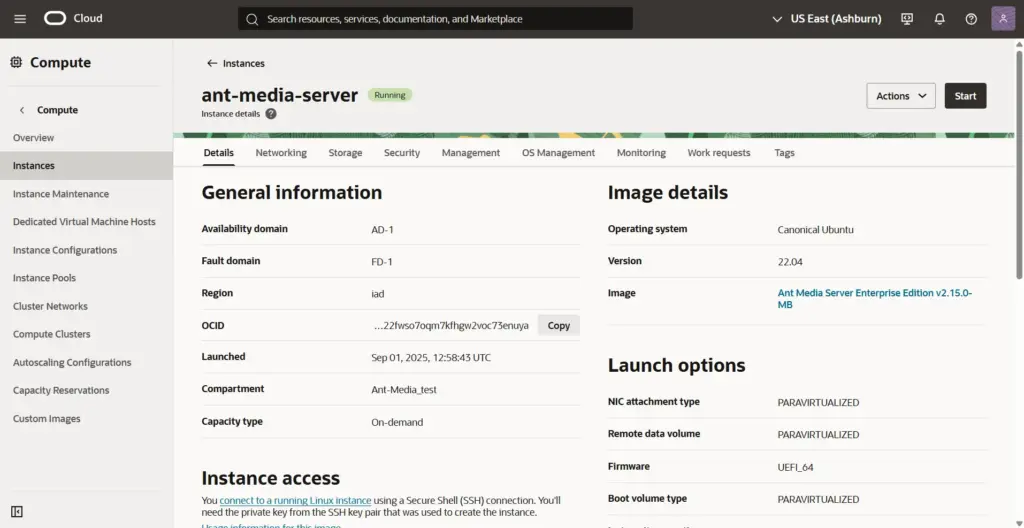
Step 5: Accessing the Ant Media Server Web Panel
- Once the instance is successfully launched, you can access the Ant Media Server web panel via
HTTP://{IP-Address}:5080 and create your login credentials. - Now that we have our Ant Media Server running, let’s enable SSL to secure the instance.
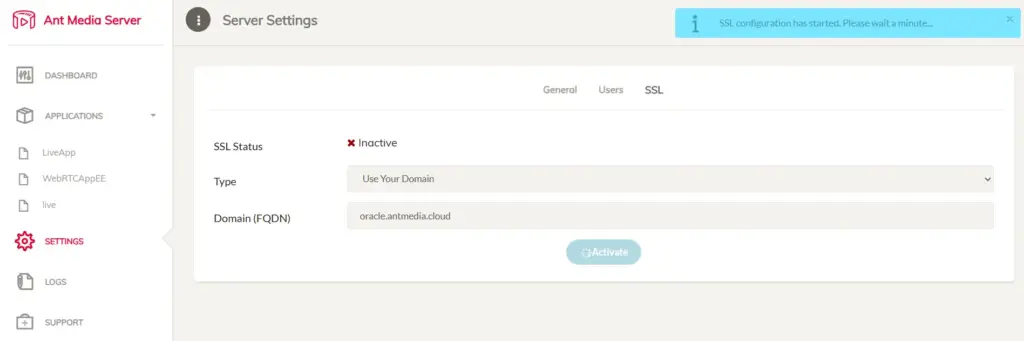
Note: Please use your subdomain for SSL. If you need a subdomain of antmedia.cloud, please write to us.
- After SSL is enabled, you can access the server securely over port 5443 with HTTPS
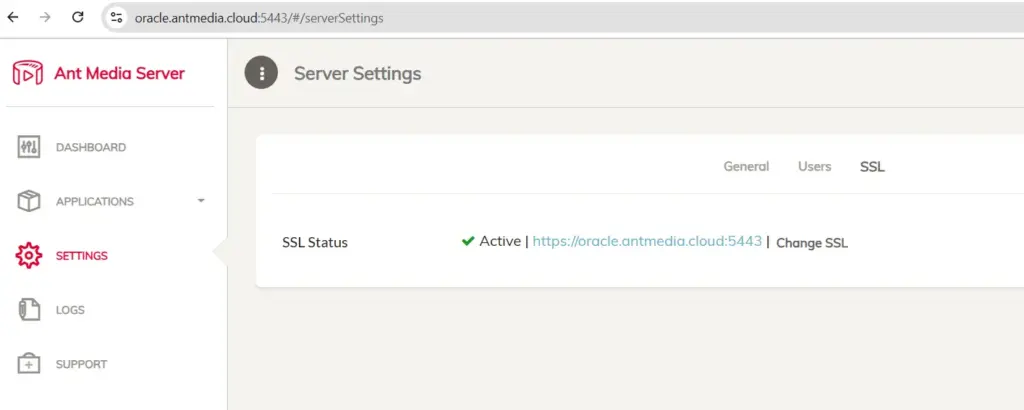
That’s it! Now you can start publishing and playing your streams just the way you like.
WebRTC Publish and Play
WebRTC Publish
- Go to the sample WebRTC publish page for publishing a WebRTC stream:
https://your-domain-name:5443/live
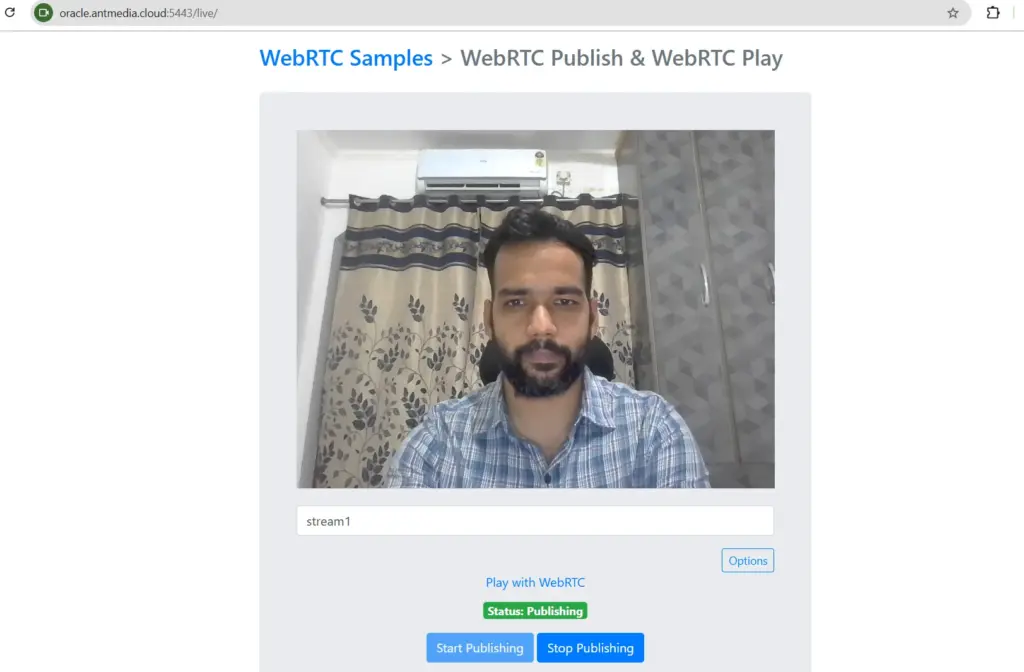
WebRTC Play
- Once a stream is published, it can be played with WebRTC.
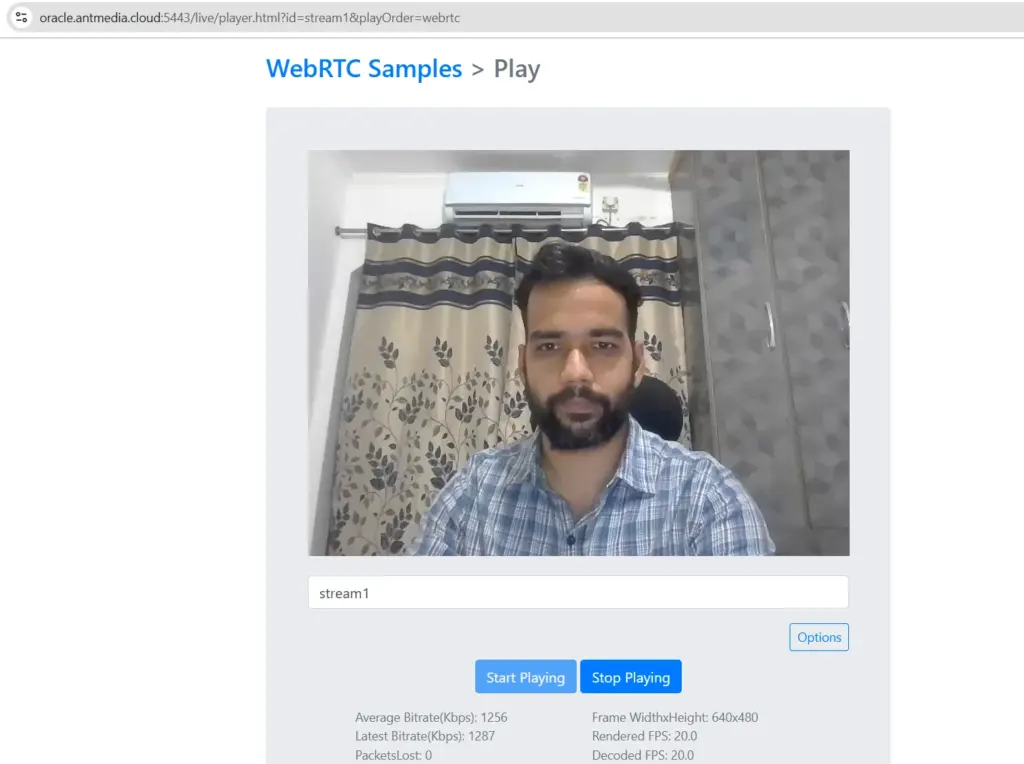
Congratulations! You can publish & play your streams in real-time with Ant Media Server on Oracle Cloud.
Conclusion
By deploying Ant Media Server on Oracle Cloud Marketplace, you can harness the power of a reliable live streaming solution combined with the flexibility and scalability of cloud infrastructure.
Whether you’re a content creator, educator, or business owner, this collaboration between Ant Media Server and Oracle Cloud empowers you to deliver high-quality live and on-demand video experiences and bring out the hero in you 🙂
You can explore the documentation or join the community discussions to learn more about the Ant Media Server.