In the high-stakes world of live-streaming infrastructure, server management is often the bottleneck. You need ultra-low latency and the elasticity to handle sudden, massive spikes in viewership. With AWS Fargate, you don’t have to worry about the operational overhead of patching, provisioning, and managing clusters of underlying EC2 instances.
If your organization has embraced containerization, you know the benefits of Docker’s portability and consistency. But running containers at scale still requires managing the virtual machines they run on.
Enter AWS Fargate.
Fargate is the “serverless” compute engine for Amazon Elastic Container Service (ECS). It allows you to run containers without having to manage servers or clusters. You define your application’s requirements at the task level, and Fargate manages the rest.
In this guide, the latest in our deep-dive series on deployment methods, we will show you exactly how to deploy Ant Media on AWS Fargate. We will take the robust streaming capabilities of Ant Media Server (AMS) and deploy them into a fully scalable, highly available, and serverless environment.
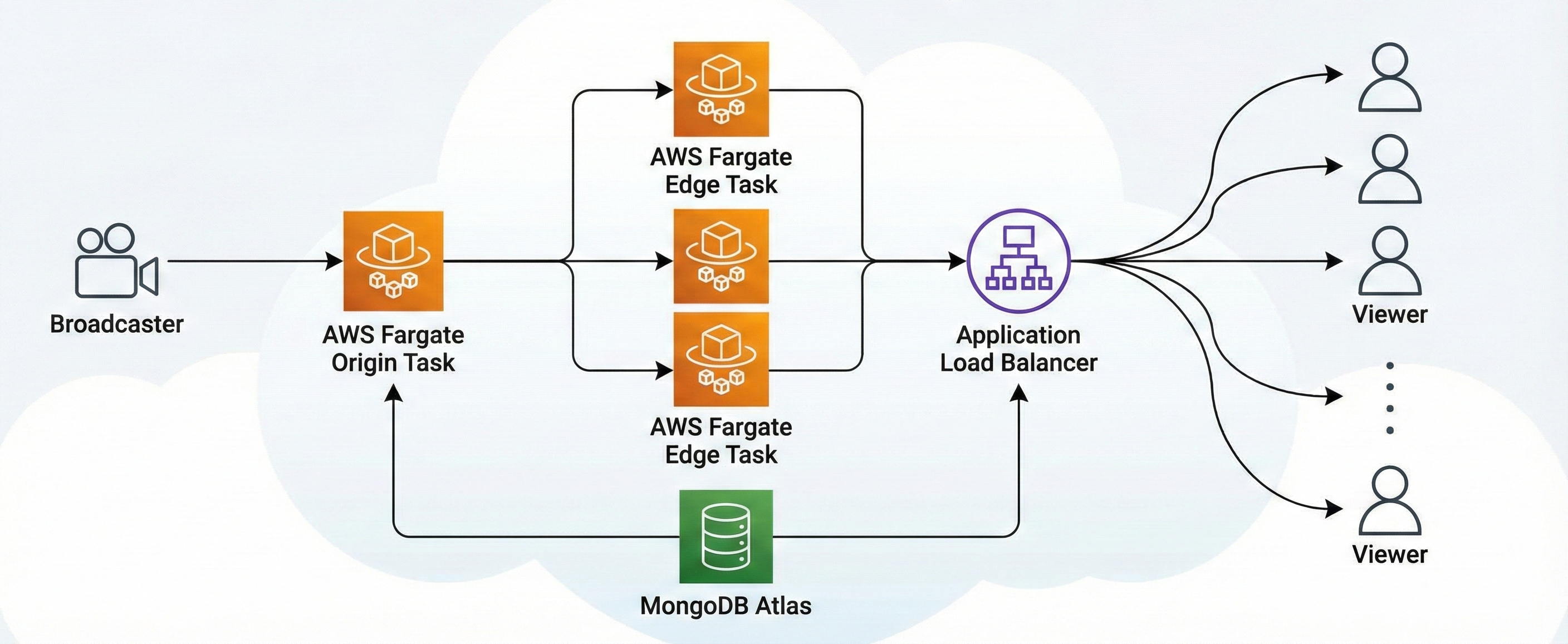
Table of Contents
Why Go Serverless with AWS Fargate for Live Streaming?
Before we dive into the technical steps to deploy Ant Media on AWS Fargate, it’s important to understand why you would choose this path over a standard EC2 deployment.
Standard ECS involves the “EC2 launch type.” You launch EC2 instances, join them to a cluster, and then tell ECS to place containers on those instances. You still own and manage the operating system of those EC2s. Fargate abstracts that infrastructure layer away completely.
Here is a quick comparison:
| Feature | ECS on EC2 | ECS on Fargate |
| Server Management | You manage EC2 instances (patching, securing). | AWS manages the infrastructure. You just run tasks. |
| Scaling | You must scale both tasks and the underlying EC2 instances. | You only scale tasks. AWS handles underlying capacity. |
| Pricing Model | Pay for EC2 instances regardless of utilization. | Pay for the exact vCPU and Memory used by tasks. |
| Best For | High control, long-running workloads, GPU needs. | “Docker-first” teams, unpredictable workloads, reduced ops. |
For many modern organizations, the operational savings of Fargate make it the preferred choice for new deployments.
Understanding the Architecture: Ant Media Server on ECS Fargate
To build a scalable streaming platform, we cannot just run one big container. We need a distributed architecture that separates stream ingestion from stream playback. When you deploy Ant Media on AWS Fargate, you must utilize the standard Origin-Edge pattern.
- Origin Tasks: These are specialized containers configured to accept incoming live streams from broadcasters (via protocols like RTMP, WebRTC, or SRT). They are the “ingestion” point. You typically run a small, fixed number of these.
- Edge Tasks: These containers do not accept incoming streams directly from broadcasters. Instead, they connect to an Origin task, pull the live stream, and serve it to thousands of viewers. These are the tasks that will scale out aggressively during a big event to meet viewer demand.
- MongoDB Tasks: The database is central to the AMS cluster and stores all stream-related information. It ensures that all nodes in the cluster have consistent access to this information, facilitating seamless streaming across different nodes
In Fargate, we will create separate “Task Definitions” for MongoDB, Origins, and Edges so they can be managed, monitored, and scaled independently.
Prerequisites
Before we begin, ensure you have the following ready:
- An active AWS Account.
- An IAM Role named
ecsTaskExecutionRoleWith the following policies attached:AmazonECSTaskExecutionRolePolicyAWSMarketplaceMeteringRegisterUsage
Check: Creating an IAM role.
Now that we have everything, let’s get started with the step-by-step instructions.
Step 0: Subscribe to the Marketplace Image
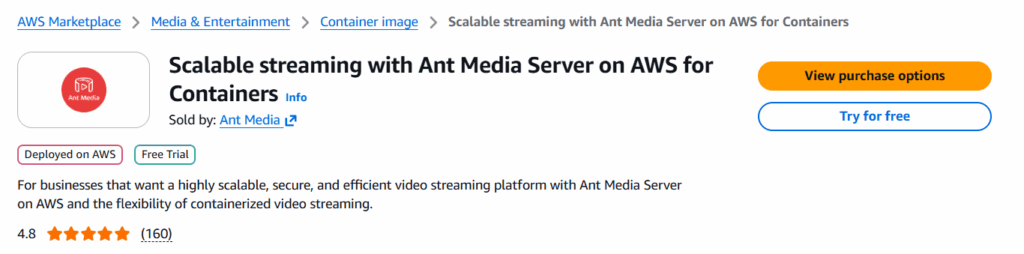
To use the Enterprise Edition of Ant Media Server on AWS Fargate, you must subscribe to the container product.
- Go to the AWS Marketplace.
- Search for Ant Media Server Enterprise Edition Container.
- Subscribe to the product.
Step 1: Create the AWS ECS Cluster
First, we create the logical group for our services.
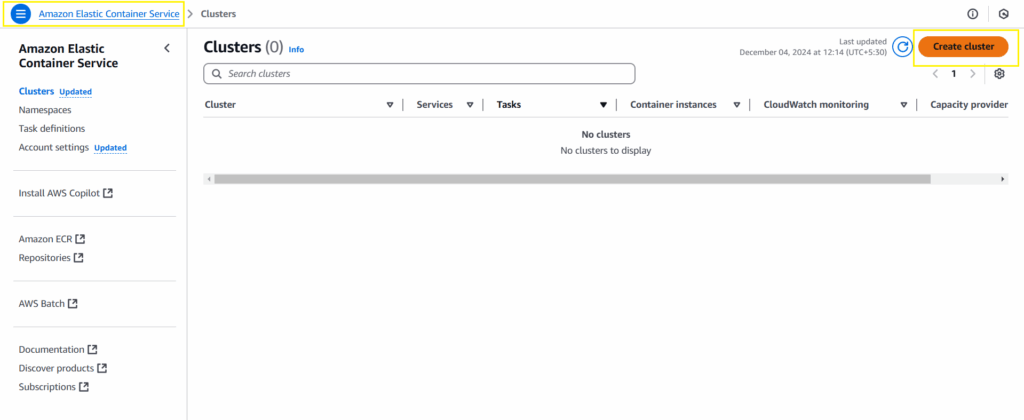
- Open the Amazon ECS console.
- Click Clusters -> Create Cluster.
- Cluster Name: Enter
ams-cluster-fargate. - Infrastructure: Select AWS Fargate (serverless).
- Click Create.
Step 2: Create the MongoDB Task Definition
Ant Media Server uses MongoDB to track active streams and cluster nodes. Other databases can also be used for running Ant Media Server. In this architecture, we run MongoDB as a specific task within AWS Fargate.
- Go to Task Definitions -> Create new Task Definition.
- Name:
mongo-task-definition. - Launch Type: Select AWS Fargate.
- OS/Architecture: Linux/X86_64.
- Task Role: Select
ecsTaskExecutionRole. - Task Size:
CPU:2 vCPU
Memory:8 GB - Container Details:
Name:mongo-container
Image:mongo(This pulls the official image from Docker Hub).
Port Mappings:27017(TCP). - Click Create.
Step 3: Run MongoDB and Retrieve Private IP
This is the critical step for this specific deployment method. The AMS nodes need to know where the database is, so we must start MongoDB first and get its internal IP address.
- Go to your cluster
ams-cluster-fargate. - Click the Tasks tab -> Run new task.
- Compute Options: Launch type -> Fargate.
- Task Definition: Select
mongo-task-definition. - Networking: Choose your VPC and a Public Subnet.
- Security Group: Create/Select a group that allows port
27017from within your VPC. - Click Create Task.
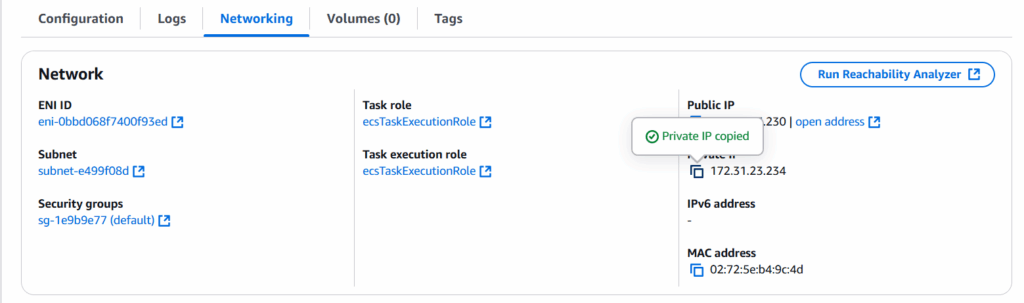
- Get the IP: Once the task status is Running, click on the task ID. Look for the Private IP address (e.g.,
172.31.23.234). Copy this IP; you will need it immediately.
Step 4: Create the AMS Node Task Definition
Now we define the actual streaming server. This definition will use the IP we just copied to connect to the cluster.
- Go to Task Definitions -> Create new Task Definition.
- Name:
ams-node-task-definition. - Launch Type: AWS Fargate.
- Task Role: Select
ecsTaskExecutionRole(Ensure the Marketplace policy is attached!). - Task Size: Streaming is CPU-intensive.
CPU:4 vCPU
Memory:8 GB - Container Details:
Name:ams-container
Image: Paste the AWS Marketplace Image URI from Step 0.
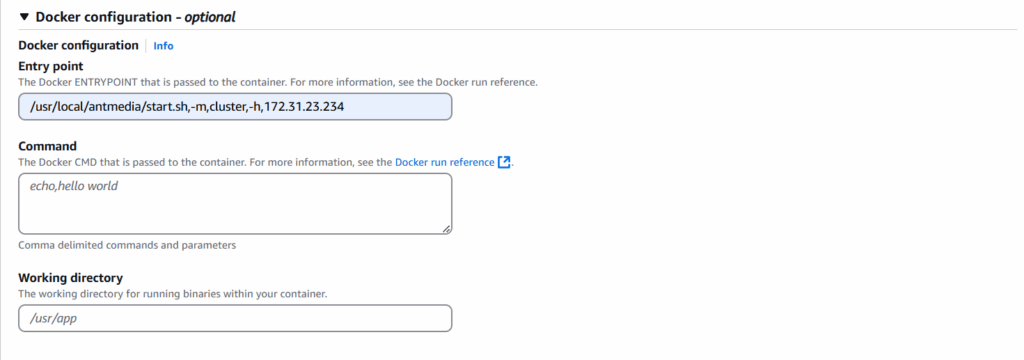
Port Mappings:5080(HTTP),5443(HTTPS),1935(RTMP),50000-60000(UDP/WebRTC). - Docker Configuration/Entry Point: This is where we configure the cluster mode.
In the Command field (or Entry Point, depending on console version), enter:
/usr/local/antmedia/start.sh,-m,cluster,-h,YOUR_MONGO_PRIVATE_IP
ReplaceYOUR_MONGO_PRIVATE_IPwith the IP address from Step 3. - Click Create.
Step 5: Configure Load Balancers and Target Groups
To distribute traffic to your Origin and Edge nodes for the AWS Fargate cluster, we need an Application Load Balancer (ALB).
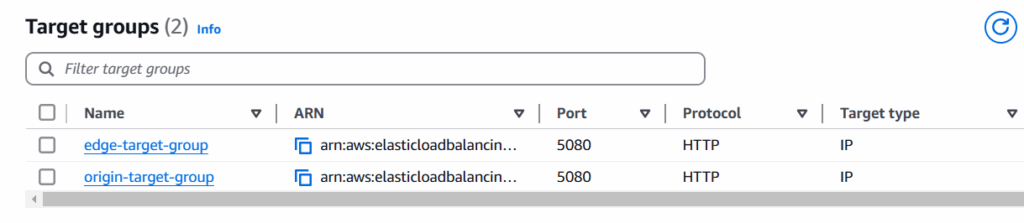
- Create Target Groups: Go to the EC2 Console -> Target Groups.
Origin Group: Nameorigin-target-group, Protocol HTTP, Port 5080, Target Type IP addresses.
Edge Group: Nameedge-target-group, Protocol HTTP, Port 5080, Target Type IP addresses.
VPC: Select public VPCs for both.
Create an Application Load Balancer
- Go to EC2 Dashboard > Load Balancing > Load Balancers > Create load balancer.
- Load balancer types: Application Load Balancer.
- Load Balancer Name:
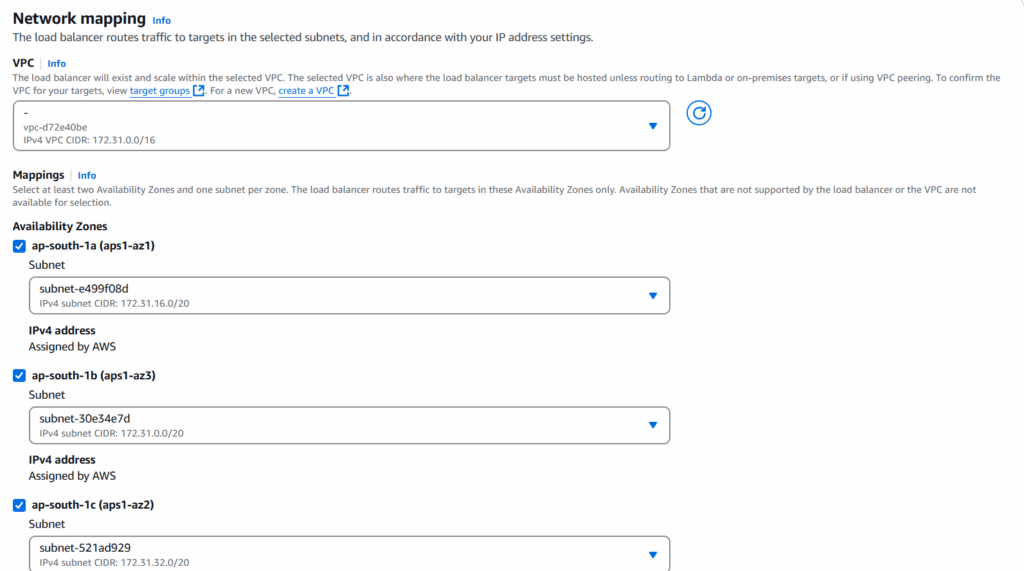
ams-load-balancer-fargate. - Scheme: Internet-facing. Select the public VPC & AZs.
- Security groups: Add a Security group that allows the ports 80, 5080, 443, and 5443.
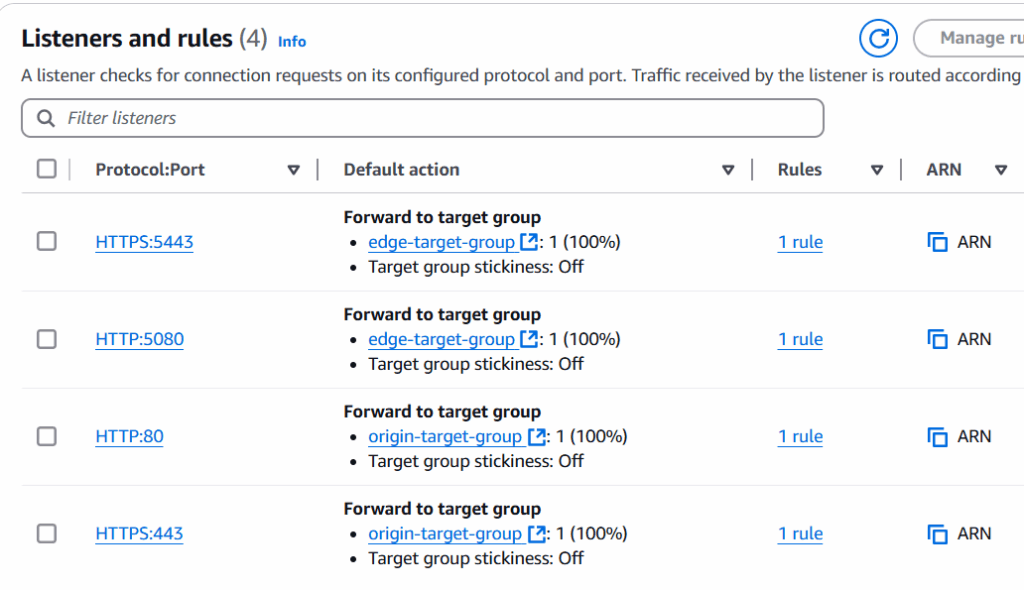
- Listeners and routing: Add Listeners as forwarding 80, 443 to the
origin-target-groupand 5080, 5443 to theedge-target-group.
- Default SSL/TLS server certificate: Choose a certificate for SSL to access the LB. For this cluster, we’ll use a certificate from the ACM.
- Create the Load balancer.
Step 6: Launch Origin and Edge Services
Finally, we launch the AWS Fargate services that will run our streaming nodes.
Origin Node
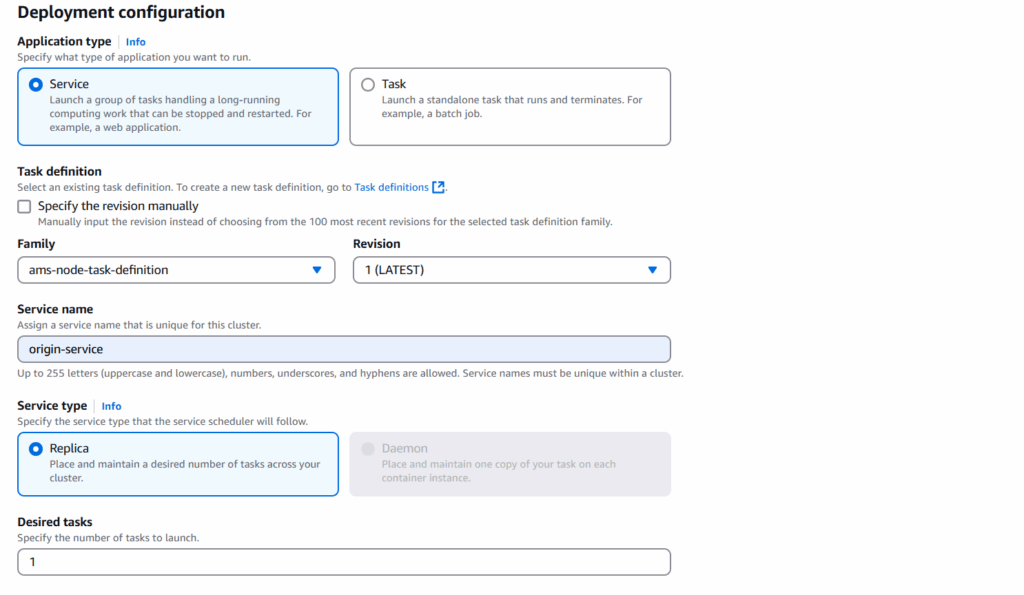
- In ECS Clusters, select your
ams-cluster-fargatecluster. - Go to Services and click Create.
- Configure:
Launch Type: AWS Fargate.
Task Definition: ams-node-task-definition.
Service Name: origin-service.
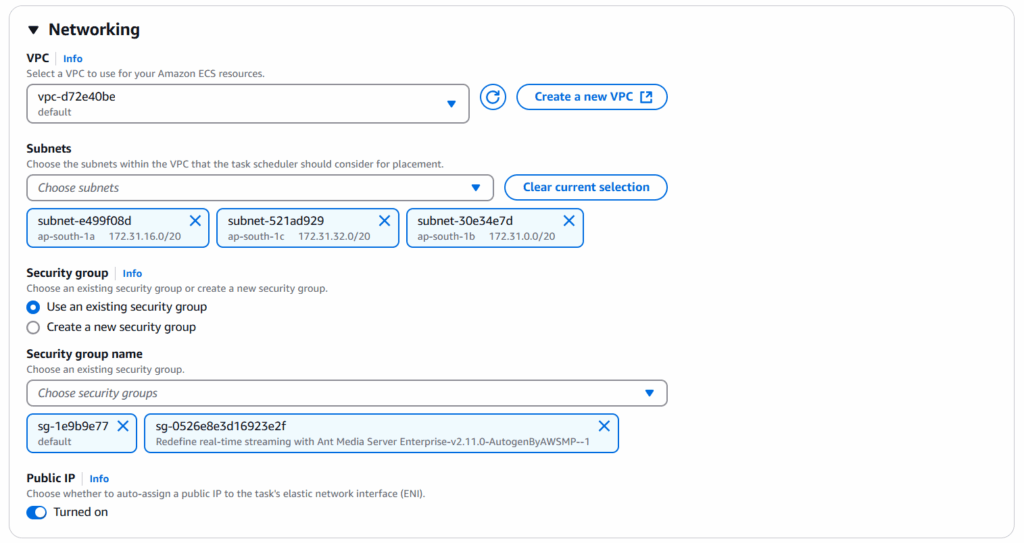
- Networking:
VPC: Public VPC
Subnets: Choose at least one.
Security Group: Edit Security Group for the Ant Medi Server to allow the required server ports.
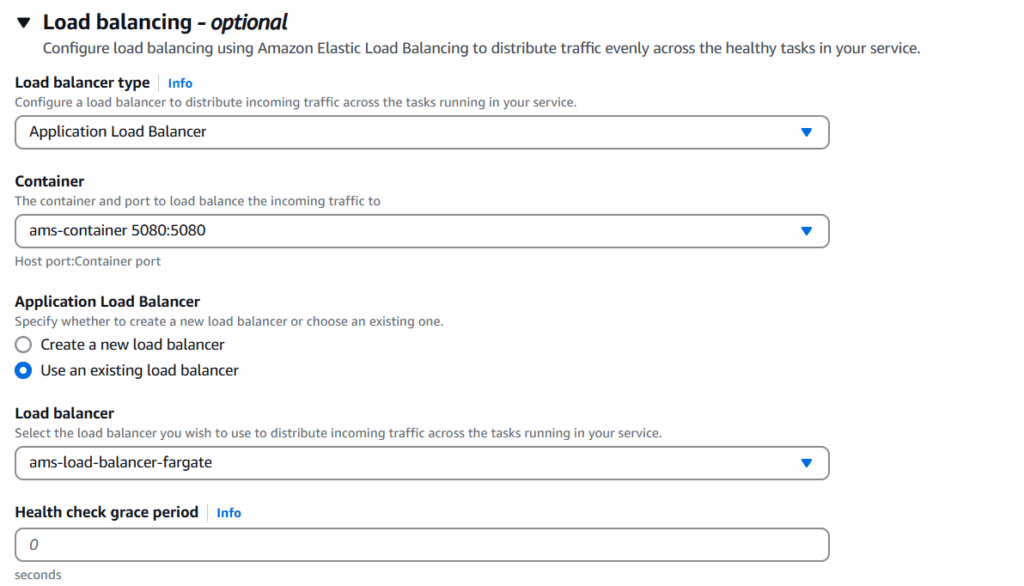
- Choose the Application Load Balancer.
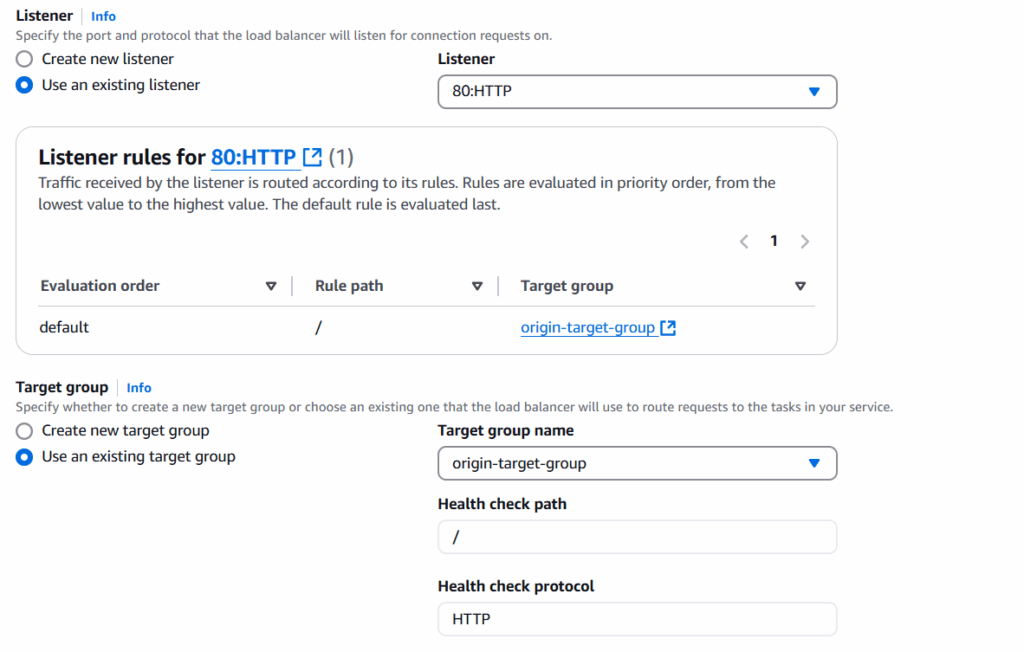
- Use the origin-target-group for HTTP/HTTPS listeners.
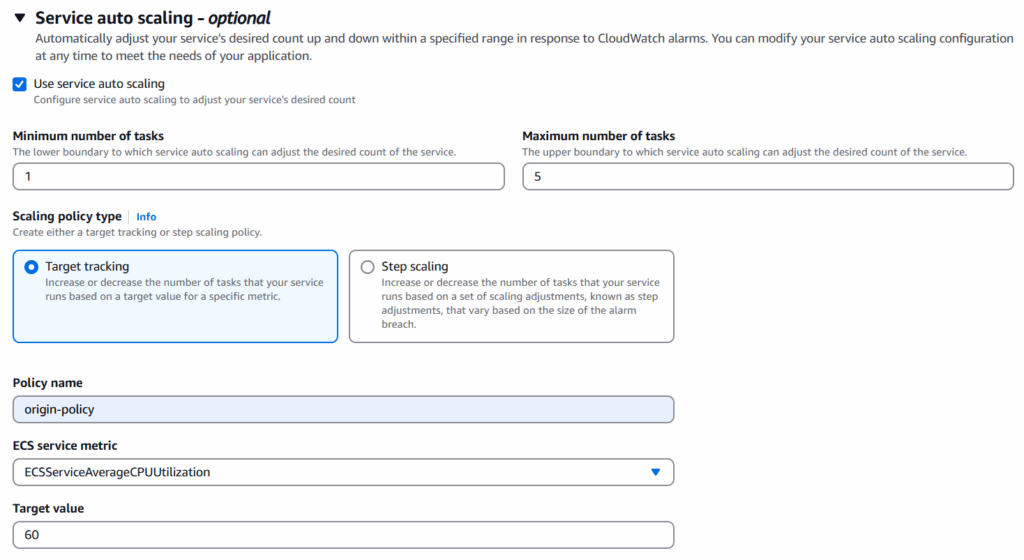
- Service Auto Scaling:
Define min, max, and desired container numbers.
Add a CPU-based scaling policy.
- Create the service.
Edge Node
Repeat the same steps as of the origin node.
- Rename service to
edge-service. - Replace HTTP/HTTPS listeners with AMS ports (5080/5443).
- Use edge-target-group for routing.
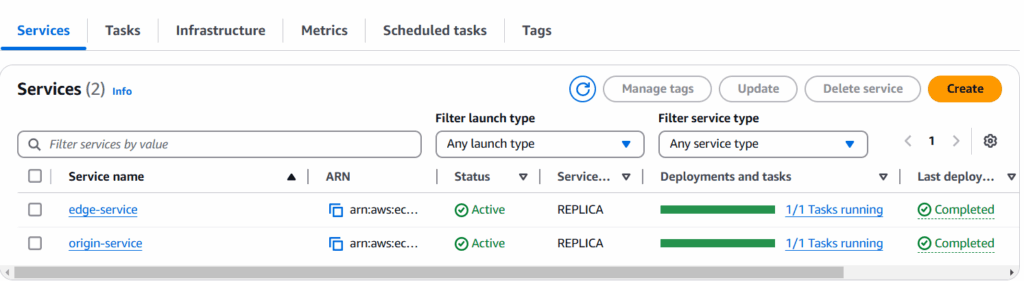
Congratulations! You have successfully deployed a scalable Ant Media Server cluster using AWS Fargate.
You can also check the different services & their status in CloudFormation > Stacks.
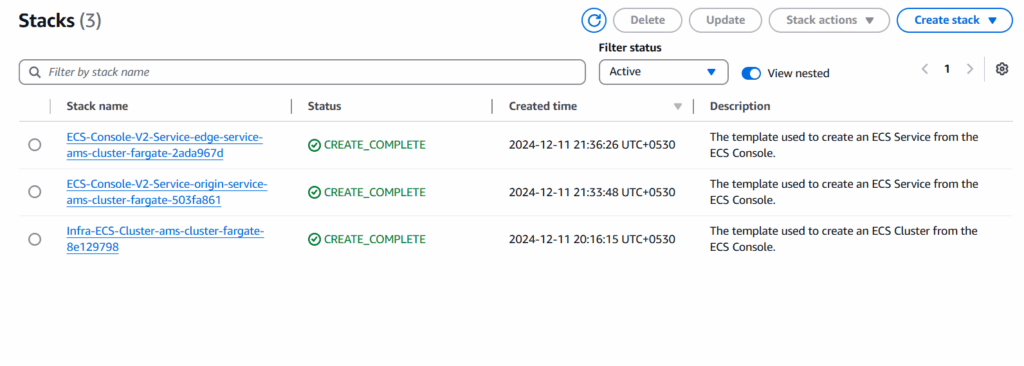
Access the Cluster
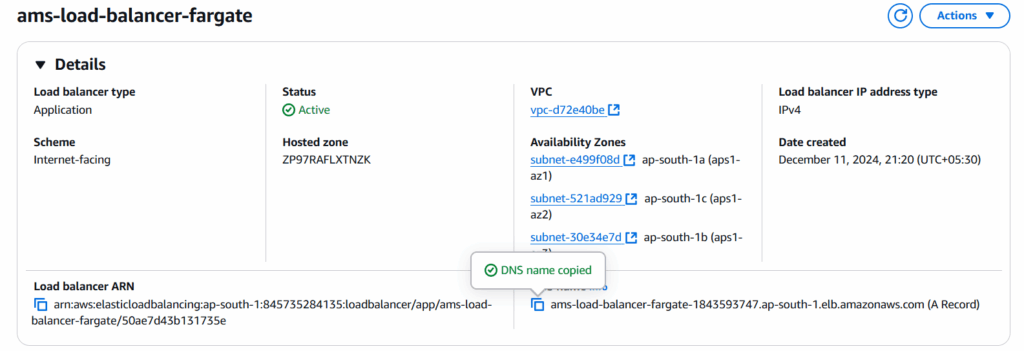
To acces the cluster created with AWS Fargate, go to the Load Balancer under EC2 Dashboard. Use the Load Balancer DNS Name to access the cluster.
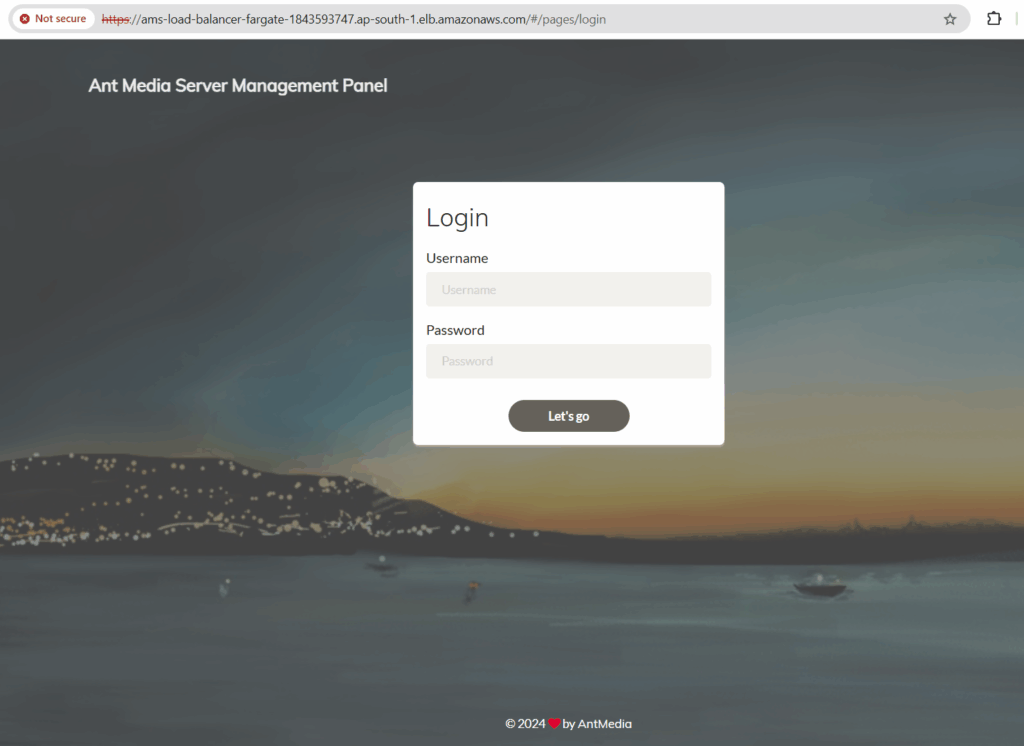
Origin Group is accessible via HTTPS on port 443
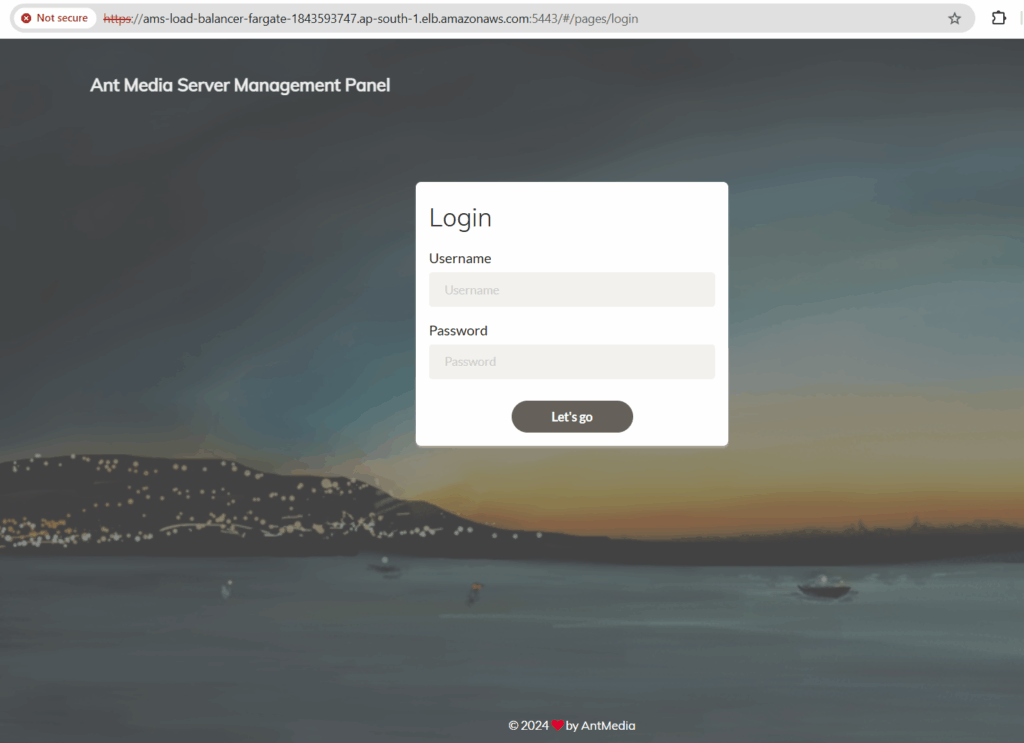
Edge Group is accessible via HTTPS on port 5443
Conclusion
You have successfully deployed a scalable Ant Media Server cluster using AWS Fargate. By following these steps, you have created a serverless architecture where:
- MongoDB runs as a central Fargate task.
- AMS Nodes connect to it using its private IP.
- AWS Fargate handles all the underlying compute scaling.
As traffic surges, new AMS tasks spin up seamlessly; when demand drops, resources scale down automatically. No servers to manage, no manual scaling — just smooth, resilient streaming for your viewers worldwide. 🚀
Frequently Asked Questions (FAQ)
Q: Do I need a license key? A: No! Because you used the AWS Marketplace container, you pay hourly through your AWS bill. Just make sure your IAM role allows marketplace metering.
Q: Is this production ready? A: Yes. Because you are using database and a Load Balancer, this setup can handle server failures and traffic spikes automatically.
Q: Can I use the Community Edition for this? A: No. The clustering and auto-scaling capabilities required for the Origin-Edge architecture on Fargate are features exclusive to the Ant Media Server Enterprise Edition.
Q: How do I debug a Fargate task if I can’t SSH into it? A: You must rely primarily on the application logs sent to AWS CloudWatch. For interactive debugging, you can enable the ECS Exec feature, which allows secure shell access to containers without opening inbound ports.
Q: Do I need to worry about underlying EC2 instances? A: No. When you select the Fargate launch type, AWS completely manages the underlying compute infrastructure. You only think in terms of container “tasks” and their CPU/memory requirements.